


You can write the best emails in the world and still get nowhere if your Google Workspace MX records aren’t dialed in. One wrong entry, and conversations stall. Deals slip away. There’s no drama—just silence.
Outbound teams depend on reliable delivery. MX records are the backbone: they decide if your message lands up front, gets flagged, or simply fades out of sight.
Most teams treat setup as a one-and-done. But if you’re scaling, running cold outreach, or managing multiple domains, you need more than the default.
With tools like Instantly, you can automate, personalize, and monitor every send. But none of it matters if the email never lands. Start with the basics. Get your MX records airtight. Everything else gets easier from there.
What Are MX Records? (And Why Most Teams Get This Wrong)
Think of MX records as the digital address book for your domain. They tell the world where to deliver your email, mapping your domain to the right mail servers. If your MX records point to the wrong place (even by a character), your messages end up lost, bounced, or trapped in a spam folder.
Getting this right isn’t just about avoiding errors. It’s about reach. Sales emails, deal negotiations, and onboarding sequences—none of these work if they don’t arrive. Outbound teams move fast, but email delivery depends on precision.
Spotting a broken setup is simple: prospects stop replying, your own test messages don’t come through, or you get an uptick in bounce notifications. Even a small misconfiguration shows up as silence or frustration downstream. That’s why this step deserves your full attention—especially if your reputation and revenue depend on staying connected.
Setting Up Google Workspace MX Records: Step-by-Step
Start with the essentials: make sure you have login access to your domain registrar and Google Workspace admin panel. If you’re not sure who controls your DNS, ask now—waiting until something breaks costs more time than a quick check.
Here’s what you need to enter: Google’s official MX records for 2025. These look like a jumble of server addresses and priorities, but every field matters. Don’t skip any, don’t change their order, and double-check for typos.
MX Record Configuration
| Priority | Server |
|---|---|
| 1 | ASPMX.L.GOOGLE.COM. |
| 5 | ALT1.ASPMX.L.GOOGLE.COM. |
| 5 | ALT2.ASPMX.L.GOOGLE.COM. |
| 10 | ALT3.ASPMX.L.GOOGLE.COM. |
| 10 | ALT4.ASPMX.L.GOOGLE.COM. |
Each provider’s dashboard looks different, but the process is the same:
- Find DNS or domain management settings.
- Remove old or conflicting MX records; leaving strays creates delivery issues.
- Add Google’s MX values exactly as shown.
- Save and confirm your changes.
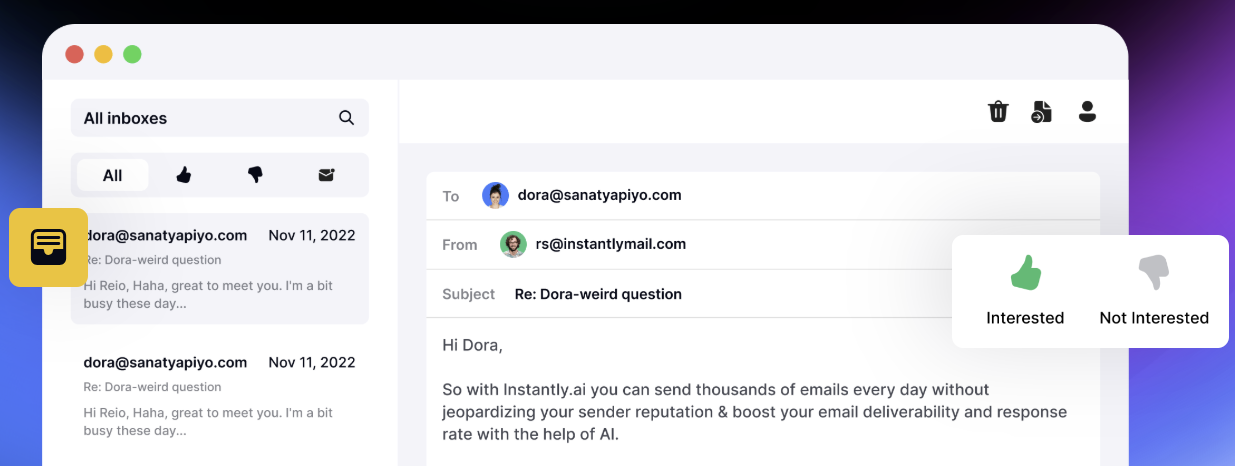
Common slip-ups: skipping a record, leaving in leftovers from old providers, or mistyping priorities. Even one small mistake can derail your delivery. Got lots of domains? Use a single workflow—Instantly Unibox comes in handy here to track and confirm changes across every sender, so nothing gets missed when you scale.
Verification and Troubleshooting
Making changes is one thing. Knowing they’ve worked is another. After saving your MX records, always check that they’re live and accurate. Don’t just assume the emails will start flowing.
The fastest way to check is with online MX lookup tools (like MXToolbox) or your domain provider’s DNS checker. Enter your domain, and you’ll see a list of active MX records. Every server and priority should match Google’s chart, no exceptions.
Give it some time. DNS changes can take anywhere from a few minutes to 48 hours to fully propagate, depending on your TTL (time-to-live) settings. If you’re not seeing updates, clear your cache or try from a different network.
If emails aren’t getting through:
- Look for obvious errors in the MX records. A typo or missing period will break delivery.
- Make sure there are no old MX records left from past setups.
- Check for typos, especially in priorities and server names.
You might also see bounce messages or delivery delays if there’s a conflict or a propagation lag. If you’re managing multiple domains or a team of senders, Instantly’s Unibox and Deliverability Dashboard can give you a clear view of what’s happening—no more chasing down scattered DNS issues. Spot a problem early, fix it once, and keep moving.

Security and Best Practices
A strong MX setup is only the beginning. For smooth delivery and minimal headaches, set your TTL (time-to-live) to an hour when testing or updating records—this lets changes update quickly if you need to fix something fast. After things are stable, you can bump TTL back up to a day or more for long-term reliability.
Don’t overlook email authentication. Add SPF, DKIM, and DMARC records alongside your MX settings to help keep your emails out of spam and stop attackers from spoofing your domain.
These records signal to providers that your messages are legit. If you’re not sure how to configure them, Instantly’s knowledge base breaks down each step, and the Deliverability Dashboard flags what’s missing so you know where to focus.
Keep an eye on your setup as your team grows or runs new campaigns. Domains, DNS, and sender records aren’t “set and forget,” especially when outbound volume spikes. A quick review now and then can save hours of troubleshooting and ensure your outreach keeps working as intended.
Key Takeaways
Getting Google Workspace MX records right is simple, but it’s not optional. Every outbound campaign, reply, and deal depends on these records working behind the scenes. Don’t guess—check your settings, test for problems, and keep an eye on them as your team grows.
Deliverability starts with the basics. When your MX records are solid, every other tool and tactic (sequencing, automation, warmup) truly matters. If you want confidence that your outreach lands where it belongs, Instantly’s deliverability suite shows you what’s working and what’s not, all in one place.
Don’t leave delivery to chance. Set up your records, back them up, and review regularly. A few minutes now means fewer headaches and more replies down the line.
Ready to see how Instantly can take your deliverability and results further? Start your free Instantly trial and see the difference for yourself.


