


Updated December 1st, 2025
TL;DR: Most email providers cap attachments at 20-25MB. Cross that line and you trigger bounces and spam flags that hurt your sender reputation. For small clips, compress to 720p at 5,000 kbps using HandBrake or VLC. For sales demos and cold outreach, skip attachments entirely. Use cloud links or the thumbnail-link method to protect deliverability while tracking engagement. Treat video delivery as a deliverability system, not a file transfer problem.
Large video attachments do not just fail to send. They trigger spam filters, slow down inbox placement, and signal to email providers that you do not understand modern outreach hygiene. For more detail, see master cold email outreach. Email providers impose strict attachment size limits to protect server performance and flag oversized files as potential security risks.
You cannot fight the architecture. Email providers built SMTP for text messages in the 1980s, not 4K video files. Learn more in our craft prospecting email templates guide. This guide shows you four methods to send video without damaging your domain health. You will learn when to compress, when to use cloud links, and how top sales teams use the thumbnail strategy to track engagement while maintaining 90%+ inbox placement.
Why you can't email large video files (The 25MB hard limit)
Developers built email for text messages in the 1980s, not 4K video files. While the original protocol did not enforce hard size limits, individual email providers added restrictions in the 1990s to manage server resources and security.
The hard limits:
Gmail caps attachments at 25MB. If your file exceeds this, Gmail automatically uploads it to Google Drive and sends a link instead. Outlook.com allows 20MB, while Yahoo Mail permits 25MB. Apple Mail defaults to 20MB but offers Mail Drop for files up to 5GB.
Why the limits?
- Large files consume server resources and slow down delivery queues
- Spam filters view oversized attachments as potential malware vectors.
- Mobile users on limited data plans cannot afford to download 50MB files to preview a sales pitch
Even if your file squeaks under the limit at 24MB, you are not safe. Emails with body sizes over 100-150KB face increased scrutiny from spam filters. A 20MB video attachment multiplies that risk 200 times.
What happens when you exceed the limit:
- Immediate bounce: The receiving server rejects your email outright. Your message never arrives.
- Spam folder placement: If the email does send, filters flag the large attachment and route it to spam.
- Domain reputation damage: Repeated bounces and spam flags hurt your sender score, affecting future campaigns across all sequences.
- Mobile user frustration: Recipients on phones see slow load times or download failures.
For sales teams running cold outreach at scale, one rep attaching large files can tank deliverability across all campaigns using that domain. To dig deeper on all things deliverability watch our deep dive tutorial below:
Method 1: Use cloud storage links (The safest bet)
Cloud storage bypasses attachment limits entirely. You upload the video once and share a link in your email body.
Step-by-step for cloud links:
- Upload your video to Google Drive, Dropbox, or OneDrive.
- Set permissions to "Anyone with the link can view."
- Copy the share link from the platform.
- Paste the link into your email body with clear context: "Watch the 2-minute demo here: [link]."
Why this works:
Your email stays under 10KB. The video lives on the cloud provider's servers, not in the recipient's inbox. You avoid attachment-based spam triggers completely.
Sales teams report higher engagement when recipients can click and watch immediately without downloads.
Trade-offs:
Cloud links add friction. The recipient must click through to another platform, and some corporate firewalls block Google Drive or Dropbox.
Best for: Internal team updates, client follow-ups, and one-on-one sales conversations where trust already exists.
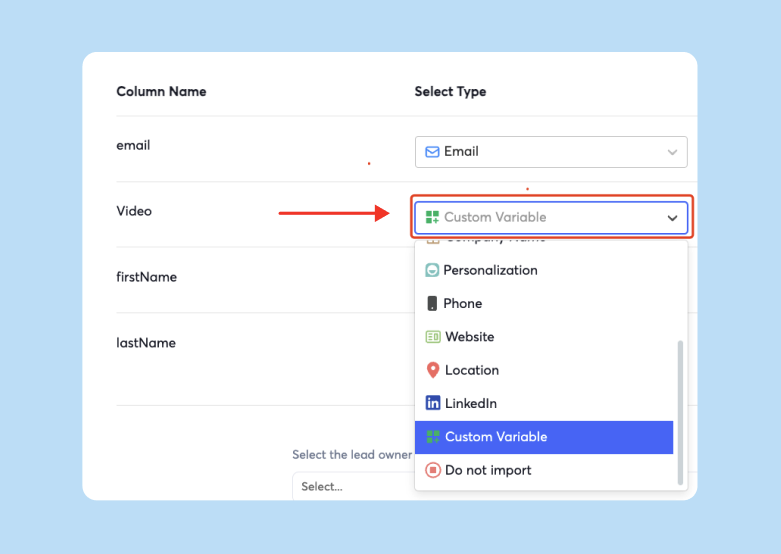
You can add personalized videos safely to any email campaign with Instantly, checkout the help docs. For practical examples, check out find best mail merge software.
Method 2: Use file transfer services (For one-off sends)
File transfer services like WeTransfer and iCloud Mail Drop specialize in moving large files without clogging email servers.
How WeTransfer works:
- Visit WeTransfer.com.
- Upload your video file (free tier allows up to 3GB).
- Enter the recipient's email address.
- Add a short message.
- Send. WeTransfer emails them a download link that expires in 7 days.
How iCloud Mail Drop works:
If you use Apple Mail and attach a file larger than 20MB, macOS automatically uploads it to iCloud and inserts a Mail Drop link. The recipient downloads the file without it ever touching their inbox. Mail Drop links expire in 30 days.
Why this matters:
Transfer services handle the infrastructure burden. Your email stays light. The recipient gets a clean download experience. You avoid domain reputation risks because the file never routes through your email server.
Limitations:
- Links expire, making these unsuitable for long-term reference.
- No tracking or analytics on who watched the video.
- Extra steps for the recipient, who must click through to a third-party site.
Best for: Sharing raw footage, large proposal decks, or project files with existing clients who expect occasional large transfers.
Method 3: Compress the video file (If you must attach)
When you need to attach a video directly, compression reduces file size by lowering resolution, bitrate, and frame rate.
Recommended compression settings for email:
- Resolution: 720p (1280x720 pixels) or 480p (854x480 pixels)
- Bitrate: 3,000-5,000 kbps for 720p content
- Frame rate: 24-30 fps
- Codec: H.264 (widely compatible)
- Format: MP4
These settings balance visual quality with file size. A 2-minute video at 720p and 5,000 kbps will land around 7-10MB, well under most email limits.
Compress with HandBrake (Free, powerful)
HandBrake is an open-source video transcoder with granular control over compression.
Step-by-step:
- Download and install HandBrake from HandBrake.fr.
- Open your video file by clicking "Open Source."
- Select a preset like "Fast 720p30" for quick compression.
- Adjust dimensions in the "Dimensions" tab to 1280x720.
- Set video codec to H.264 in the "Video" tab.
- Choose bitrate by selecting "Avg Bitrate (kbps)" and entering 5000.
- Set frame rate to 30 fps.
- Lower audio bitrate to 128 kbps in the "Audio" tab.
- Click "Start Encode" and save the compressed file.
HandBrake's interface lets you preview file size estimates in real time as you adjust settings.
Compress with VLC Media Player (Free, simpler)
VLC is a versatile media player that also converts and compresses video.
Step-by-step:
- Open VLC and go to Media > Convert / Save.
- Add your video by clicking "Add."
- Click "Convert / Save" and select "Convert."
- Choose a profile like "Video - H.264 + MP3 (MP4)."
- Edit settings by clicking the wrench icon next to the profile.
- Adjust bitrate in the "Video codec" tab.
- Scale resolution in the "Resolution" tab.
- Lower audio bitrate to 128 kbps.
- Set destination and click "Start."
Online compressors (Quick, no installation)
Online tools like YouCompress and similar services let you upload and compress without software. These work for quick fixes but lack advanced settings and raise privacy concerns for sensitive business content.
When compression fails:
If your compressed video still exceeds 20MB, lower the resolution to 480p or reduce the bitrate further. Accept the quality loss or skip attachment entirely and use Method 1 or Method 4.
Best for: Short product updates, internal training clips, or quick demos where a direct attachment is required and file size is manageable.

Method 4: The Sales Pro System (Thumbnail + Link)
Modern sales teams do not attach video. They do not even paste cloud links in plain text. They use the thumbnail-link method to control presentation, track engagement, and protect deliverability.
How it works:
- Record your video using Loom, Vimeo, or YouTube (unlisted).
- Take a screenshot of an engaging frame from the video.
- Add a play button overlay using Canva or a simple image editor.
- Insert the thumbnail image into your email body.
- Hyperlink the image to the hosted video URL.
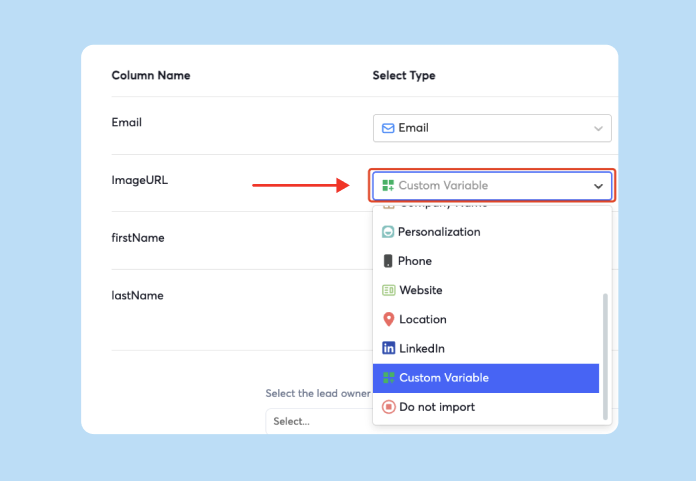
When the recipient clicks the thumbnail, they open the video in a new tab. The email itself remains under 1MB because you are only sending a small image file. Instantly also supports this flow, checkout how to add custom image urls to you email body in our help docs.
Why this wins for cold outreach:
Cold email attachments scream "spam" to filters. Keeping emails light improves inbox placement significantly. The thumbnail method delivers three benefits:
- Zero attachment weight. Your email stays lean, avoiding size-based spam triggers.
- Higher click-through rates. Visual thumbnails with play buttons create curiosity and improve engagement over text links.
- Trackable engagement. Platforms like Loom and Vidyard show you when the recipient watched, how long they watched, and which sections they replayed.
For sales leaders running multi-account campaigns, the thumbnail method protects domain health. You can scale personalized video outreach across unlimited inboxes without risking attachment-based flags. Our email warmup network maintains sender reputation while you scale video outreach across multiple sequences.
Best for: Cold outreach, prospecting campaigns, personalized sales demos, and any scenario where deliverability and tracking matter more than convenience.
Comparison: Which method fits your campaign?
| Method | Pros | Cons | Best For |
|---|---|---|---|
| Cloud Storage Links | No file size limit, maintains quality, simple setup | Extra click for recipient, permission issues | Internal updates, client follow-ups |
| File Transfer Services | Handles very large files (3-5GB), clean UX | Links expire, no tracking | One-off sends, raw footage |
| Video Compression | Direct attachment, works offline | Quality loss, still limited by 20MB cap | Short clips, required attachments |
| Thumbnail + Link | Best deliverability, engagement tracking, scalable | Requires hosting platform | Cold outreach, sales campaigns |
Use cloud links for trusted relationships. Use compression when a stakeholder specifically requests an attachment. Use the thumbnail method for all cold outreach and prospecting.
Checklist: Before you hit send
Run this 5-item checklist every time you include video in an outreach email:
- Is the email body under 10KB? If not, move the video to a link or thumbnail instead of attaching.
- Is the video link publicly accessible? Test the link in an incognito browser to confirm permissions.
- Did you include context? Tell the recipient what they are about to watch and why it matters.
- Is your domain warmed up? If sending at scale, verify your warmup schedule is active and health scores are above 90%.
- Can you track engagement? Use Loom, Vidyard, or a hosted platform that reports view metrics.
This checklist protects deliverability while ensuring the recipient has a smooth experience. Sales teams that skip proper warmup often see inbox placement drop when they scale video outreach without the right infrastructure.
Stop fighting the file size limit. Use it as a forcing function to build a better outreach system.
Compress for small clips. Use cloud links for trusted relationships. Run the thumbnail method for cold outreach paired with infrastructure that protects your sender reputation at scale.
Ready to scale video outreach without burning domains? Instantly's automated warmup and unlimited email accounts let you run the thumbnail strategy across thousands of prospects while maintaining 90%+ inbox placement. Start free today and apply this system.
FAQs
How do I send a YouTube video in email?
Copy the YouTube URL and paste it as a hyperlink in your email body, or use the thumbnail-link method by linking a screenshot to the video. Do not try to embed YouTube directly as most email clients block video embeds.
Can I embed video directly in Gmail?
No. Gmail and most modern email clients do not support HTML5 video embeds for security reasons. Use a thumbnail image linked to a hosted video instead.
What is the best video format for email?
MP4 with the H.264 codec. This format has the widest compatibility across devices and email clients while maintaining good quality at low file sizes.
What happens if my compressed video still exceeds 25MB?
Switch to cloud storage links or the thumbnail method. Compressing below 25MB while maintaining acceptable quality is difficult for videos longer than 3-4 minutes.
Does Instantly support video in cold email campaigns?
We built Instantly's platform to let you insert images and hyperlinks in sequence steps, perfect for the thumbnail-link method. Combine this with our automated warmup features to protect deliverability when scaling video outreach.
Key terminology
Email attachment limit: The maximum file size an email provider allows per message, typically 20-25MB for consumer services like Gmail and Outlook.
Video compression: The process of reducing a video file's size by lowering resolution, bitrate, or frame rate, often using codecs like H.264.
Bitrate: The amount of data used to encode one second of video, measured in kilobits per second (kbps). Lower bitrates create smaller files but reduce quality.
Codec: A technology that compresses and decompresses video data. H.264 is the most widely supported codec for email compatibility.
Mail Drop: Apple's service that automatically uploads large email attachments to iCloud and sends recipients a download link valid for 30 days.
Deliverability: The ability of an email to reach the recipient's primary inbox rather than spam or promotions folders, determined by sender reputation and email hygiene.
Sender reputation: A score email providers assign to your domain and IP address based on bounce rates, spam complaints, and engagement patterns.
Cloud storage: Online services like Google Drive, Dropbox, or OneDrive that host files and provide shareable links, bypassing email attachment limits entirely.


