


Updated December 05, 2025
TL;DR: Email providers cap attachments at 20MB to 25MB, and large files trigger spam filters. Never attach video files directly. Instead, upload your video to a platform like Loom or Vidyard, generate a clickable thumbnail, and embed that image in your email. This protects deliverability and provides engagement tracking. For scale, use Instantly's custom variables to automate personalized video delivery across thousands of prospects. One user booked 15 demos in 10 days by combining personalized video with automated follow-ups and tight list hygiene.
Large email attachments can trigger spam filters or be rejected outright, even if compressed. This not only prevents your message from reaching its intended recipient but can also harm your sender reputation and put your domain at risk. Avoiding oversized files helps ensure your emails land safely in the inbox.
This guide shows you the professional alternative: a hosted video workflow that bypasses attachment limits, protects your deliverability, and scales personalized video to hundreds of prospects per day.
Why you can't (and shouldn't) attach video files
Email providers set hard attachment size limits to protect their infrastructure and users. Gmail and Yahoo cap attachments at 25MB, while Outlook limits attachments to 20MB. A one-minute video recorded at 1080p resolution can easily exceed 50MB to 100MB. The math doesn't work.
More important than the size limit is the deliverability risk. Spam filters treat large attachments as a red flag. Attachments increase the likelihood your email is classified as spam, especially from a cold sender with no prior email history with the recipient. Inbox placement drops, sender reputation degrades, and opens plummet.
"The ability to send emails as text only, without HTML, significantly boosts deliverability. I find that text-only emails feel more personal and less like marketing blasts, which helps them land in the inbox." - Josh G. on G2
Attaching video files to cold outreach is the fastest way to destroy your domain health and waste your best creative asset.
Method 1: The "Quick Fix" (Cloud Storage)
The simplest workaround is uploading to cloud storage and sharing the link. Google Drive, Dropbox, WeTransfer, and iCloud Mail Drop all support large files, with Mail Drop handling up to 5GB. This solves the attachment problem but lacks engagement tracking, looks like phishing to cold prospects, and doesn't scale beyond manual one-off sends.
- Pros: Fast setup, works for any file size, familiar tools.
- Cons: No engagement tracking, unfamiliar links trigger skepticism in cold emails, manual process takes hours at scale, zero personalization infrastructure.
Use cloud storage for internal files or existing customer videos, not cold outreach.
Method 2: The "Sales System" (Video Platforms)
Professional sales teams use dedicated video platforms built for outreach. These tools solve the file size problem and add engagement tracking, personalized thumbnails, and CRM integration.
Leading platforms:
- Loom: Records your screen, webcam, or both. The platform optimizes video encoding automatically for fast loading. Free tier offers 25 videos at 720p.
- Vidyard: Offers robust analytics, CRM integrations, and A/B testing for thumbnails. One customer at HubSpot used video messages to book 4x more meetings compared to their previous outreach approach.
- Sendspark: Designed specifically for cold email. Records video, generates personalized landing pages, and tracks who watched. Integrates with HubSpot and Salesforce.
- Hippo Video: Combines recording, editing, and distribution with detailed heatmaps showing which parts of your video each prospect watched.
The "Thumbnail + Link" strategy:
Instead of attaching a file or pasting a raw URL, video platforms generate a clickable thumbnail image that looks like a video player. You embed this image in your email body. When the prospect clicks play, they're taken to a landing page where the video plays instantly.
This approach is universally supported by email clients and provides a better user experience. Clickable thumbnails with play button overlays consistently outperform text-only CTAs in cold outreach.
Engagement metrics that matter:
Video platforms track the data you need to optimize outreach:
- View rate: What percentage of recipients clicked play?
- Average watch time: Did they finish or drop off at 10 seconds?
- Rewatch rate: Multiple views signal high interest.
- CTA clicks: Did they click your calendar link or reply?
One League case study found that sales reps using personalized video achieved reply rates 3x higher than plain text emails. Teams using video report conversion rates significantly higher than standard outreach.
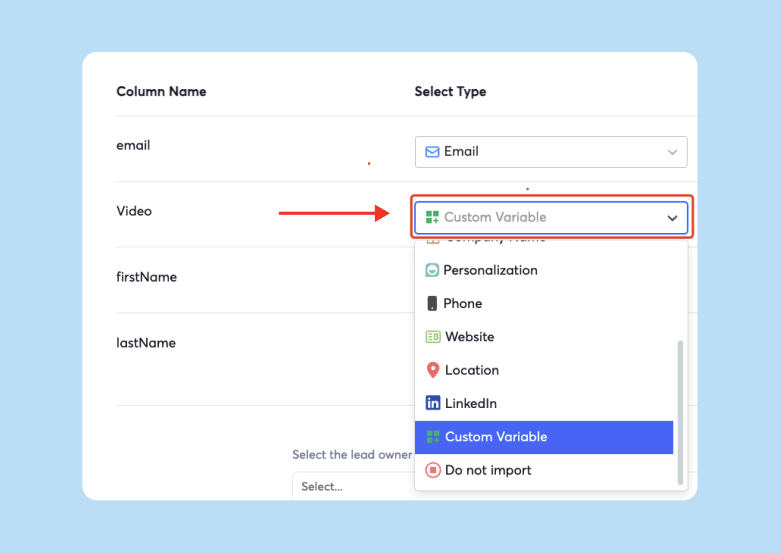
You can insert the links to your personalized videos to any Instantly email campaign in just a click.

Comparison: Cloud Storage vs. Video Platforms
| Feature | Cloud Storage | Video Platform | Winner |
|---|---|---|---|
| File size support | Up to 5GB | Optimized automatically | Tie |
| Engagement tracking | None | View rate, watch time, heatmaps | Video platforms |
| Email deliverability | Neutral to negative | Positive (clickable thumbnails) | Video platforms |
| Personalization at scale | Manual per prospect | Variables and automation | Video platforms |
| CRM integration | None | Native Salesforce, HubSpot sync | Video platforms |
Use cloud storage for internal transfers. Use video platforms for cold outreach that requires tracking or scale.
How to scale personalized video with Instantly (The 3-Step System)
Recording 50 personalized videos is time-consuming. Uploading them, generating thumbnails, and pasting each link into an email sequence takes hours.
Our custom variables solve this. You can automate personalized video delivery across thousands of prospects by mapping video URLs to contact records and inserting them dynamically into your email template.
Here's the system one of our users followed to book 15 demos in 10 days:
Step 1: Record and host (Batch your videos)
Record your videos in batches using Loom or Vidyard. Focus on one Ideal Customer Profile at a time. Record 10 variations for HR tech prospects, 10 for fintech prospects.
Keep videos short. Aim for 30 to 60 seconds. According to Vidyard research, completion rates drop significantly after 60 seconds in cold outreach, with only 65% of viewers watching business videos to the end beyond that threshold.
Upload each video to your hosting platform and copy the shareable link. Create a spreadsheet with two columns: prospect email and video URL.
Pro tip: If your videos exceed 100MB, Gumlet reports that switching to 720p can reduce file size significantly while maintaining acceptable quality for sales outreach.
Step 2: Prepare the data (CSV setup)
Build a CSV file with these columns:
- Email: Prospect email address
- First Name: For email personalization
- Company: For subject line and body copy
- Video URL: The shareable link from Loom or Vidyard
- Thumbnail URL: The clickable image generated by your video platform
If you're using our SuperSearch lead database to source contacts, export your list and add the video columns manually or via a tool like Zapier.
Verify all email addresses to keep bounce rates below 1%. High bounces destroy sender reputation faster than any other mistake.
Step 3: Automate delivery (Campaign setup)
Upload your CSV to our campaign builder. Create a new sequence and insert custom variables into your email template.
Sample email template:
Subject: Quick video for {{Company}}
Hi {{First Name}},
I recorded a 45-second video walking through how [specific outcome] could work for {{Company}}.
Watch the video: {{Video URL}}
Curious if this makes sense for your team. Worth a quick call?
For better engagement, embed the thumbnail image instead of a plain link:
<img src="{{Thumbnail URL}}" alt="Video for {{First Name}}" style="max-width: 100%; cursor: pointer;" />
Or let Instantly handle this for you and drop the url into your campaign dynamically.
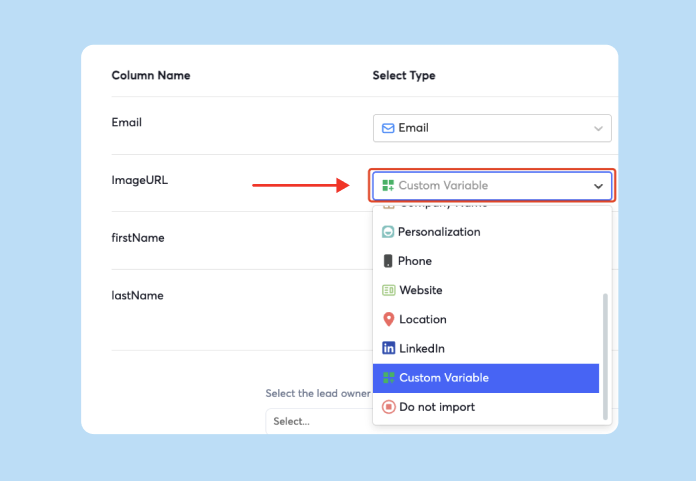
Set your send window to 8:30 to 10:30 a.m. local time. Cap daily sends at 30 per inbox for the first two weeks. Our email warmup feature handles reputation building in the background while you ramp.
Monitor reply rates and inbox placement daily. If primary inbox placement drops below 80%, pause the campaign, run an inbox placement test, and tighten your list hygiene.
"I find Instantly incredibly beneficial for sorting all my email issues, especially with client outreach. Previously, when I used other software, my emails often ended up in the spam box, which was a major hassle. However, since I started using Instantly, everything has been smooth." - Ubed K. on G2
Scaling safely:
Once you hit consistent 5% reply rates and stable inbox placement, scale horizontally. Add more sending accounts through our unlimited account pricing instead of increasing volume per inbox. This protects your primary domain and spreads risk.
Use A/B testing on thumbnails and subject lines to optimize performance. One agency increased reply rates by 40% by testing static thumbnails versus animated GIFs.
Checklist: Video outreach best practices
Use this checklist to audit your video outreach before launching:
Pre-launch:
- Verify all email addresses. Bounces above 1% hurt deliverability more than any other metric.
- Test links manually. Open each video URL in an incognito browser to confirm it works.
- Check thumbnail rendering. Send a test email to Gmail, Outlook, and Apple Mail to verify the thumbnail displays correctly.
- Warm up sending accounts. Run automated warmup for 14 to 30 days before launching campaigns.
- Standardize video scripts. Create templates for common use cases so reps maintain quality at scale.
During campaign:
- Monitor primary inbox placement. Use our placement tests weekly to catch deliverability issues early.
- Track engagement by video. Identify which videos drive the highest watch time and reply rates.
- Cap sends at 30 per day per inbox. Never exceed this limit during the first month.
- Pause at 1% bounces. If bounce rate exceeds 1%, stop sending, re-verify your list, and resume at lower volume.
Post-campaign:
- Review heatmaps. Check where prospects drop off in your videos. Tighten scripts to eliminate dead time.
- A/B test thumbnails. Try different facial expressions, text overlays, and animated GIFs to improve click rates.
- Integrate with CRM. Connect Instantly to your CRM to log video views and automate follow-up tasks.
Never attach video files to cold emails. The 20MB to 25MB attachment limits make it impossible, and spam filters punish large attachments by routing your emails to junk.
The professional approach is a hosted workflow. Record your videos, upload them to Loom or Vidyard, generate clickable thumbnails, and embed those images in your emails. This protects deliverability and provides engagement tracking.
For agencies and sales teams that need scale, our custom variables automate personalized video delivery across unlimited inboxes without manual copy-paste. Combine this with automated warmup, inbox placement testing, and verified contact data to maintain primary inbox placement at scale.
"The platform is super intuitive, easy to set up, and makes it simple to manage multiple domains and inboxes at scale. Deliverability is great and the analytics give us exactly what we need to optimize campaigns quickly." - Shaiel P. on G2
One sales leader following this system booked 15 demos in 10 days. The difference wasn't the video itself. It was the delivery system: hosted thumbnails, automated variables, and tight hygiene.
Try Instantly and use the video variable system to scale personalized outreach without burning your domains. The warmup, placement tests, and unlimited accounts are included on every plan.
FAQs
How do I send a YouTube video in an email without attaching it?
Copy the YouTube video URL and paste it into your email. Gmail and Outlook will auto-generate a clickable preview.
Can I email video files directly if I compress them under 20MB?
Technically yes, but it's a bad idea. Even compressed to 18MB, spam filters flag attachments as suspicious. Your deliverability drops, and you have no engagement tracking.
What's the best video length for cold email?
30 to 60 seconds. Completion rates drop significantly after 60 seconds for cold prospects. Save longer demos for later in the sales cycle.
Do animated GIF thumbnails improve click rates?
Yes. Animated GIFs can increase click-through rates by 20% to 40% compared to static images.
How do I track if someone watched my video?
Use a dedicated video platform like Loom, Vidyard, or Sendspark. These tools log view counts, watch time, and CTA clicks.
Can I automate personalized video at scale?
Yes. Upload a CSV with video URLs mapped to each contact and use custom variables to insert the correct video link into each email automatically.
Key Terms Glossary
Email attachment size limit: The maximum file size an email provider allows you to send as an attachment. Gmail and Yahoo cap this at 25MB, while Outlook limits it to 20MB.
Cloud storage: Services like Google Drive, Dropbox, or OneDrive that host files online and let you share them via link instead of attaching them directly to an email.
Video hosting platform: Tools like Loom, Vidyard, or Sendspark designed for creating, hosting, and tracking sales videos with engagement analytics and CRM integrations.
Clickable thumbnail: A static image or animated GIF that looks like a video player, embedded in an email with a hyperlink to the actual video on a landing page.
Sender reputation: A score that email providers assign to your domain based on bounce rates, spam complaints, and engagement. Poor reputation leads to spam folder placement.
Deliverability: The ability of your email to reach the recipient's primary inbox rather than spam, promotions, or getting blocked entirely.
Mail Drop: Apple's feature for sending files up to 5GB through iCloud. The email contains a download link instead of the actual attachment.
Custom variables: Placeholders like {{First Name}} or {{Video URL}} that automatically populate with contact-specific data in each email sent through a campaign tool.
Bounce rate: The percentage of emails that fail to deliver due to invalid addresses, full inboxes, or server rejections. Keep this below 1% to protect your domain.


