


Updated October 28, 2025
TL;DR: Sales leaders can activate LinkedIn Sales Navigator in minutes by choosing a subscription plan, entering payment details, and confirming the trial or purchase. After sign-up, configure your sales preferences, connect your CRM, and install the browser extension to start prospecting. Export leads from Sales Navigator using third-party tools, then import them into Instantly via CSV with proper field mapping. Instantly's built-in email verification, unlimited accounts, and warmup ensure your outreach lands in the primary inbox. This guide provides the exact steps to get started and connect your new lead source for immediate, scalable pipeline generation.
Your team needs more qualified leads, fast. LinkedIn Sales Navigator offers a B2B database with over 1 billion members and advanced filters to pinpoint decision-makers. But getting started can feel like a maze of settings, permissions, and integration decisions. This guide provides sales leaders with a clear, auditable process to sign up, configure, and connect Sales Navigator to Instantly, turning a new lead source into consistent pipeline with minimal friction and control you can defend.
LinkedIn Sales Navigator offers rich B2B lead data, but its true value is accessed through efficient setup and smooth integration with your outreach platform. This guide provides sales leaders with a step-by-step playbook for signing up, configuring, and managing Sales Navigator, alongside practical advice for connecting it to Instantly to drive consistent pipeline without deliverability headaches or clunky workflows.
Why sales leaders need LinkedIn Sales Navigator
Sales Navigator addresses three critical challenges for heads of sales: finding qualified prospects at scale, identifying buyer intent signals, and standardizing prospecting across your team.
Accessing LinkedIn's large B2B database
Sales Navigator provides access to LinkedIn's professional network with advanced filters that go far beyond basic LinkedIn search. You can target prospects by job title, seniority, company size, industry, geography, and even technologies they use. This eliminates hours of manual research and gives your SDRs a clear starting point for list building.
The platform offers over 50 advanced search filters compared to the handful available in standard LinkedIn. Filter by past companies, years in current role, and shared connections. Boolean search operators (AND, OR, NOT) allow precise targeting. For example, combine filters to isolate exactly the decision-makers you need by specifying "VP" AND "Sales" AND "SaaS" to narrow your results.
Identifying buyer intent signals
Sales Navigator tracks real-time signals that indicate buying interest. Job changes, company expansions, funding announcements, and content engagement all appear as alerts in your dashboard. These trigger events provide timely, relevant reasons to reach out, improving reply rates and reducing cold outreach fatigue.
Here's a review from an Instantly user who got this right:
"Best email sending tool ever. Good deliverability, easy spin tax, can add in lots of personalization clean and simple UI, one click email responses using tags, smooth Zapier integration, and powerful tracking with subsequences. Everything works really well & can't fault this tool. I built my entire client acquisition system through this." - Joshua Blacklidge on Trustpilot
The key is acting on fresh signals before competitors do.
Streamlining prospecting efforts
Without Sales Navigator, SDRs waste hours toggling between LinkedIn, Google, and your CRM to build target lists. Sales Navigator centralizes this workflow. Save leads to custom lists, set up automated alerts for account updates, and track engagement history in one interface. This standardization makes ramp plans easier to execute and QA.
For teams using Instantly, the workflow becomes: prospect in Sales Navigator, export leads, import to Instantly, then launch campaigns with verified emails and automated warmup.
How to sign up for LinkedIn Sales Navigator
Signing up for Sales Navigator typically takes about 10 minutes. You need an active LinkedIn profile and payment information, even for the free trial.
Step 1: Choose your Sales Navigator subscription
Navigate to the LinkedIn Sales Navigator homepage or access it directly from your LinkedIn account by clicking the "Work" icon (grid of nine dots) in the top right corner, then selecting "Sales Navigator."
You will see three main plans:
- Core (Professional): This individual plan includes advanced search, 50 InMail credits per month, and lead recommendations. LinkedIn typically offers monthly and annual billing options with annual plans offering savings.
- Advanced (Team): This team plan adds TeamLink (to use team connections), Smart Links, and basic CRM connectivity. It provides collaboration features for sales teams.
- Advanced Plus (Enterprise): This enterprise plan has custom pricing and offers full CRM sync, territory management, API access, and advanced analytics for large sales organizations.
Most sales leaders start with Core for a proof of concept, then upgrade to Advanced once the team adopts it. LinkedIn typically offers a 30-day free trial for Core and Advanced plans, but you must cancel before the trial ends to avoid charges. Check the LinkedIn Sales Solutions page for current pricing and trial availability.
Step 2: Create or log in to your LinkedIn account
Sales Navigator requires an active LinkedIn profile. If you do not have one, create a professional profile with your current role, company, and a recent photo. LinkedIn uses your profile to surface shared connections and commonalities with prospects, which improve response rates.
Log in to your LinkedIn account using your email or phone number and password. The Sales Navigator login page will authenticate your session and redirect you to plan selection.
Step 3: Complete billing and payment details
Even for a free trial, LinkedIn requires payment information. Enter your credit or debit card details, billing address, and company information. Review the billing cycle (monthly or annual) and confirm the pricing.
Important: Set a calendar reminder to cancel before the trial ends if you are evaluating multiple tools. LinkedIn will charge your card automatically unless you cancel through your account settings.
Step 4: Confirm your subscription
After entering payment details, review the order summary and click "Start Free Trial" or "Subscribe." LinkedIn will send a confirmation email to your inbox. Check your spam folder if you do not see it within a few minutes.
Once confirmed, you will land on the Sales Navigator homepage. The interface will prompt you to set up your sales preferences and start your first lead search.
Initial setup: Configuring your Sales Navigator account
After activation, spend 15 minutes configuring your account. This upfront work improves the relevance of lead recommendations and alerts.
Setting up your sales preferences
Sales Navigator asks you to define your Ideal Customer Profile (ICP) during initial setup. Specify target industries, company sizes, geographic regions, job functions, and seniority levels. This helps the platform provide relevant lead and account recommendations.
For example, if you sell HR software to mid-market companies, select industries like "Human Resources Services," company sizes "51-200 employees" and "201-500 employees," and job titles like "VP of HR" or "Director of People Operations." The more precise your ICP, the better the recommendations.
You can update these preferences anytime by clicking your profile icon and selecting "Preferences." A YouTube tutorial on Sales Navigator for lead generation recommends revisiting preferences monthly to refine targeting as you learn what converts.
Connecting your CRM (optional but recommended)
If you use Salesforce, HubSpot, or Microsoft Dynamics, connect it to Sales Navigator. Advanced and Advanced Plus plans include native CRM integrations that sync lead data, reduce manual entry, and surface Sales Navigator insights inside your CRM.
To connect your CRM, go to Settings, then Integrations, and follow the authentication flow. You will grant Sales Navigator permission to read and write data in your CRM. This integration allows you to save leads directly to your CRM, log activities, and pull Sales Navigator profile cards into your CRM records.
For teams using Instantly, the CRM integration is optional (although, recommended) You will export leads from Sales Navigator as CSV files and import them into Instantly. Instantly offers integrations for campaign tracking and reply management. See how Instantly's CRM helps you get more leads:
Understanding your dashboard and key features
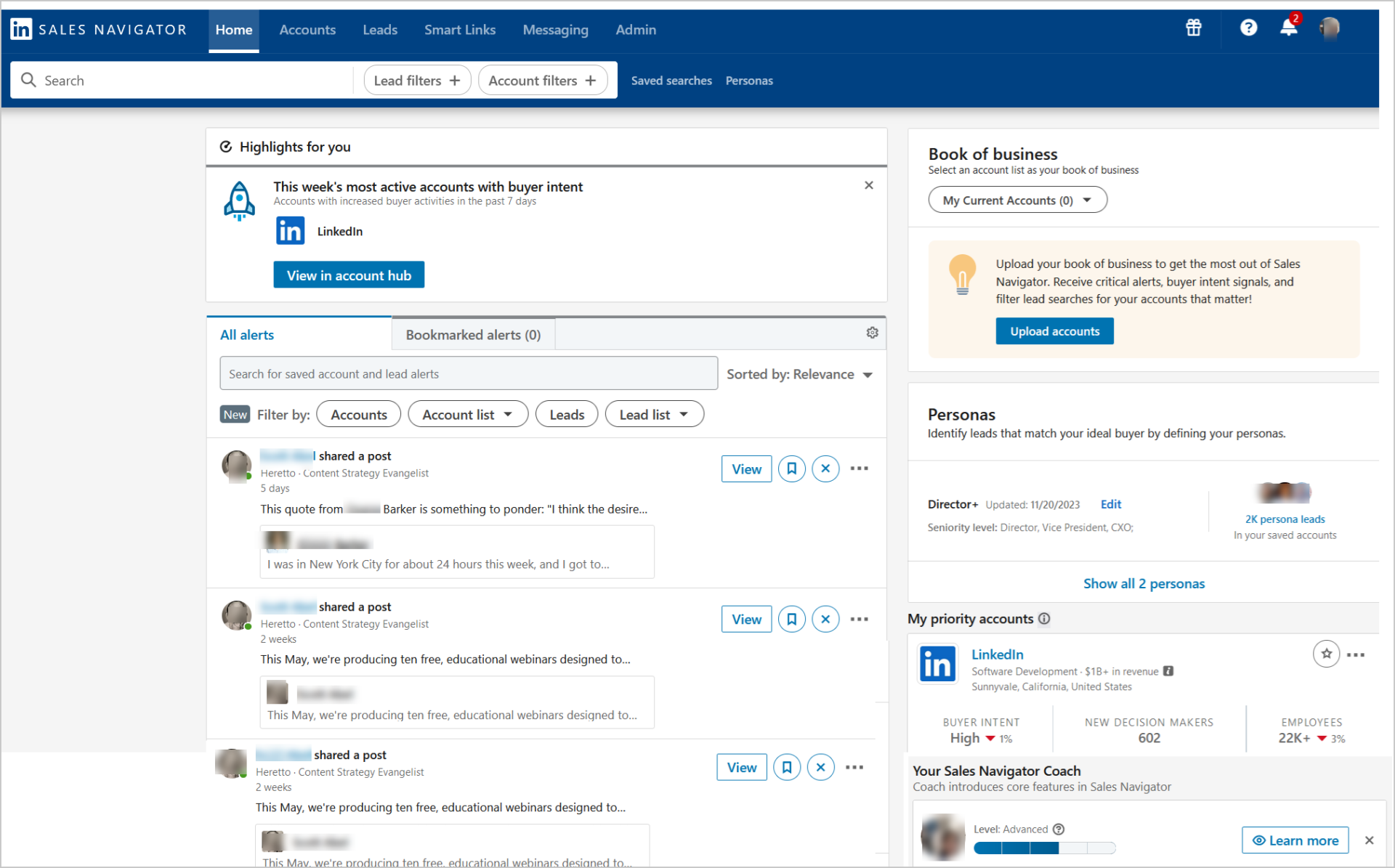
Your Sales Navigator homepage displays saved leads, recommended leads, recent searches, and account updates. Familiarize yourself with these sections:
- Lead and Account Lists: Organize prospects into custom lists for tracking and segmentation.
- Saved Searches: Sales Navigator notifies you when new leads match your search criteria.
- Alerts: Real-time updates on job changes, company news, and content engagement.
- InMail: Send direct messages to prospects even if you are not connected.
Spend 10 minutes exploring the interface. Run a test search, save a few leads to a list, and review the alert settings. Our blog on safe LinkedIn automation recommends using Sales Navigator for prospecting and a cloud email platform like Instantly for outreach, avoiding risky browser automations that can get your LinkedIn account restricted.
Managing your Sales Navigator account
Account management includes logging in, updating subscriptions, managing team permissions, and canceling when necessary.
How to log in to Sales Navigator
After initial setup, log in directly at linkedin.com/sales/login. Enter your LinkedIn credentials (email or phone and password) and click "Sign In."
Alternatively, if you are already logged into LinkedIn, click the "Work" icon in the top right corner and select "Sales Navigator." This bypasses the login screen and takes you straight to your dashboard.
Updating your subscription plan
To upgrade or downgrade, navigate to Settings (click your profile icon), then Account, then Manage Premium Account. You will see your current plan, billing cycle, and options to switch plans.
Upgrades take effect immediately. Downgrades typically apply at the end of your current billing period. If you are moving from Advanced to Core, you will lose access to TeamLink and CRM integrations, so export any critical data first.
Managing team members and permissions
For Advanced and Advanced Plus plans, admins can add team members, assign licenses, and set permissions. Go to Admin Settings (if you are the account owner) and select "Manage Users."
Add users by email, assign roles (admin or member), and control access to shared lead lists and CRM integrations. This centralization ensures reps follow standardized prospecting workflows and prevents rogue activity.
Sales leaders should review user activity quarterly to ensure reps are using Sales Navigator effectively and not wasting licenses.
Cancelling your Sales Navigator subscription
To cancel, log in and navigate to Settings, then Account Preferences, then Manage Premium Account, then Cancel Subscription. LinkedIn will prompt you to confirm and may offer a retention discount.
Important: Canceling removes access immediately and deletes all saved leads and lists. Export your data before canceling. If you purchased through a sales rep (common for Advanced Plus), contact them directly to cancel.
Set a reminder to cancel at least 48 hours before your trial or billing cycle ends to avoid unwanted charges.
Integrating LinkedIn Sales Navigator with Instantly for outreach
Sales Navigator and Instantly can be connected by exporting leads from Sales Navigator using third-party tools, import them into Instantly via CSV, verify emails, and launch campaigns.
Exporting leads from Sales Navigator
LinkedIn Sales Navigator does not offer a native CSV export feature. You need a third-party tool to extract lead data. Many browser extensions and cloud-based services offer this functionality.
Here is the process using a typical third-party extraction tool:
- Run a search in Sales Navigator using your target filters.
- Click the tool's extension icon in your browser toolbar.
- Select which data fields to extract (name, title, company, LinkedIn URL, email if available).
- Enable email enrichment if the tool offers it. Many tools use waterfall enrichment with multiple data providers to find verified emails.
- Export the data as a CSV file.
Best practices recommend breaking large lists into batches of 2,500 leads to stay within LinkedIn's rate limits and avoid account restrictions. This controlled approach protects your account and ensures data quality.
Importing leads into Instantly's SuperSearch or campaigns
Once you have a CSV file, import it into Instantly. Instantly offers two entry points: SuperSearch for lead enrichment or direct campaign import.
For CSV import:
- Log in to Instantly and navigate to Campaigns, then select a campaign, then Leads, then Add Leads, then Upload CSV.
- Map the CSV columns to Instantly's fields. The "Email" field is mandatory and should be the first column. Map "First Name," "Last Name," "Company Name," and "Job Title" to their corresponding Instantly fields.
- Map unique data points (e.g., LinkedIn Profile URL, industry, seniority) as custom variables. Instantly supports custom variables for personalization.
- Enable duplicate detection to prevent re-uploading existing leads.
- Check the "Verify leads" box to run Instantly's email verification during import. This classifies emails as valid, risky, or invalid and protects your sender reputation.
The key is ensuring your CSV uses UTF-8 encoding and has clear, capitalized column headers.
Setting up automated outreach sequences in Instantly
After importing leads, create an email sequence. Instantly's campaign builder tutorial guides you through writing emails, adding follow-ups, and setting send windows.
Best practices for Sales Navigator leads:
- Personalize with variables: Use merge tags like
{{first_name}},{{company_name}}, and custom variables (e.g.,{{linkedin_profile_url}}) to reference specific details from their profile. - Reference shared connections or job changes: If your Sales Navigator export includes recent alerts (job change, company news), mention them in your opener. Example: "Saw you recently joined
{{company_name}}as{{job_title}}. Congrats on the move." - Keep sequences short: Start with a 3-step sequence (initial email plus 2 follow-ups over 7 to 10 days). Monitor reply rates before adding more steps.
Instantly's AI features can draft personalized email copy based on your ICP and value proposition. Use them to generate variants for A/B testing. A full tutorial on Instantly's features walks through the complete campaign setup process.

Monitoring deliverability and reply rates with Instantly's tools
Sales Navigator leads often include high-value prospects, so protect your sender reputation by monitoring deliverability closely.
"Instantly has been a game changer for my vertical in merchant service where email marketing is key. I've converted several leads into deals using Instantly and it's paid for itself 5x. On top of that, their customer service is quick and punctual when something comes up." - Philip Hendrich on Trustpilot
Instantly offers:
- Automated warmup: All accounts on Instantly benefit from unlimited warmup. Warmup gradually increases daily send volume and simulates engagement to build trust with mailbox providers.
- Inbox Placement tests: Instantly's Inbox Placement feature sends test emails to seed accounts across Gmail, Outlook, and other providers to measure where your emails land (primary, promotions, spam).
- Deliverability network: Instantly's private deliverability network ensures warmup emails are opened and replied to, signaling to mailbox providers that you are a trusted sender.
- SISR (Light Speed plan): Server and IP Sharding and Rotation on the Light Speed plan ($358/month) provides dedicated IP pools for high-volume senders, further improving inbox placement.
Aim for 80 to 85 percent primary inbox placement, keep hard bounces below 2 percent, and monitor spam complaints (target less than 0.1 percent). If placement drops, pause sends, re-verify your list, and follow Instantly's slow ramp plan to rebuild reputation. See just how easy it is to setup warmup with Instantly below:
Best practices for Sales Navigator and Instantly workflow
Standardize your workflow to ensure consistent results across your team.
Maintaining clean data between platforms
Sales Navigator data can become stale. Job titles change, people leave companies, and email addresses expire. Re-verify your lists every 90 days using Instantly's verification tool before launching new campaigns.
Use Instantly's duplicate detection during import to prevent sending to the same prospect multiple times.
"I have tried many platforms before. Instantly is the best I have used. They introduce new features quite often." - Selvakumar Palanisamy on Trustpilot
Segmenting leads for targeted campaigns
Do not dump all Sales Navigator leads into one campaign. Segment by industry, seniority, geography, or pain point. Create separate campaigns with custom messaging for each segment.
For example, run one campaign for VPs of Sales in SaaS companies (50 to 200 employees) and another for Directors of Marketing in financial services. This segmentation improves personalization and reply rates.
Instantly supports unlimited campaigns across all plans, so there is no penalty for creating multiple targeted sequences.
Using Instantly's AI for personalized outreach
Instantly's AI and automation features reduce manual work.
AI Copilot: Use it to research prospects, generate email variants, and analyze campaign performance. Copilot tasks run automatically, surfacing insights and recommendations.
AI Reply Agent: This feature auto-classifies and responds to lead replies in under 5 minutes, using configurable Human-in-the-Loop or Autopilot modes. It costs 5 Instantly Credits per AI reply.
These AI tools help sales leaders scale outreach without proportionally scaling headcount. A guide to AI sales assistants for agencies details how agencies use Instantly's AI to manage client campaigns efficiently.
Auditing your outreach process for compliance and performance
Sales leaders must ensure reps follow best practices and comply with data regulations. Instantly provides:
- Admin controls: View team activity, campaign performance, and deliverability metrics across all accounts.
- Audit-friendly reporting: Export campaign data, reply logs, and inbox placement results for QA reviews or CFO scrutiny.
- Transparent pricing: Instantly's flat-fee unlimited email accounts remove per-seat cost surprises, addressing a common pain point for sales leaders.
Run weekly deliverability audits. Check inbox placement, bounce rates, and spam complaints for each sending account. Pause any account below 75 percent inbox placement and run a deliverability recovery workflow.
Drive pipeline with a Sales Navigator to Instantly flow
LinkedIn Sales Navigator accesses a large, targetable lead database. When combined with Instantly's deliverability-first email platform, it becomes a reliable pipeline engine. Sign up for Sales Navigator, configure your ICP, export leads with a third-party tool, and import them into Instantly with verified emails and automated warmup. Monitor inbox placement, segment campaigns, and use AI to personalize at scale. This workflow gives sales leaders the control, auditability, and consistent results they need to hit plan without surprises.
Ready to turn Sales Navigator leads into booked meetings? Try Instantly free and connect your new lead source today. Start with unlimited email accounts, built-in warmup, and AI agents to convert prospects into pipeline without per-seat penalties or deliverability headaches.
FAQs
How much does LinkedIn Sales Navigator cost?
LinkedIn Sales Navigator offers three plans with monthly and annual billing options: Core for individual reps, Advanced for sales teams with collaboration features, and Advanced Plus for enterprises with custom pricing and API access. LinkedIn typically offers a 30-day free trial for Core and Advanced plans. Check the LinkedIn Sales Solutions pricing page for current rates and trial availability.
Can I integrate Sales Navigator with HubSpot or Salesforce?
Yes. Advanced and Advanced Plus plans include native CRM integrations for Salesforce, HubSpot, and Microsoft Dynamics. These integrations sync lead data, log activities, and surface Sales Navigator insights inside your CRM. For teams using Instantly, you will export leads as CSV and import them into Instantly, which offers its own integrations for campaign tracking.
What is the difference between Sales Navigator and LinkedIn Premium?
Sales Navigator focuses on advanced prospecting with 50+ search filters, InMail credits, lead recommendations, and real-time alerts. LinkedIn Premium offers basic profile viewing, messaging, and learning resources. Sales Navigator provides far more granular targeting and sales-specific features like TeamLink and CRM integrations, making it essential for B2B outbound teams. Review the LinkedIn comparison page to understand feature differences.
How do I ensure my outreach from Instantly lands in the primary inbox?
Use Instantly's automated warmup to build sender reputation gradually. Enable Inbox Placement tests to monitor where your emails land across Gmail, Outlook, and other providers. Aim for 80 to 85 percent primary inbox placement, keep hard bounces below 2 percent, and spam complaints below 0.1 percent. Verify emails before sending, follow a slow ramp plan for new domains, and pause campaigns if deliverability drops. Instantly's deliverability tools measure and optimize this metric.
Key terminology for Sales Navigator and outreach
Sales Navigator buyer intent: Signals that indicate a prospect is actively researching solutions or ready to buy. Examples include job changes, company funding announcements, technology adoption, and engagement with your content. Sales Navigator surfaces these real-time alerts to help you reach out at the right moment.
Primary inbox placement: The percentage of your emails that land in the recipient's main inbox (not promotions, spam, or junk). High primary inbox placement (80 to 85 percent or higher) is critical for cold email success. Instantly's deliverability tools measure and optimize this metric through warmup, SISR, and automated placement tests.
Deliverability network: A pool of email accounts that exchange warmup emails to build sender reputation. Instantly's private deliverability network ensures your warmup emails are opened, replied to, and marked as important, which signals trust to mailbox providers.
Sequence governance: The rules, templates, and QA processes that standardize outreach across your team. Sales leaders use sequence governance to prevent reps from sending unsafe or off-brand emails. Instantly provides admin controls and team workspaces to enforce governance at scale.


