


Updated December 1st, 2025
TL;DR: Email clients block direct video playback and cap attachments at 20MB to 25MB. The only scalable method is hosting your video on a platform like Loom or YouTube and sending a clickable thumbnail image with a play button overlay. This protects sender reputation, allows click tracking, and increases CTR by up to 40% compared to static images. For sales teams running volume campaigns, pair the thumbnail method with a platform like Instantly to ensure your video links do not trigger spam filters and your domains stay healthy.
Video gets replies, but only if the email lands in the primary inbox and the video actually plays. Read our full guide on cold email basics. Most email clients do not support direct video playback. Gmail, Outlook, and Yahoo Mail block embedded video for security reasons.
Attempting to attach or embed video files creates three immediate problems: file size limits trigger hard bounces, large emails flag spam filters, and inconsistent rendering breaks the user experience.
The solution is having the right system in place: host the video externally, send a static thumbnail with a play button overlay, and link to the hosted file. We break this down further in outreach email software. This keeps your email lightweight, your deliverability intact, and your click data trackable. Add proper warmup and health monitoring, and you can scale video outreach across your team without risking sender reputation.
Why you cannot email large video files
Developers built email protocols for text, not rich media. The technical architecture of SMTP and IMAP imposes strict size limits that make video attachments unworkable at scale.
Hard size limits across major providers
Gmail caps total message size at 25MB, including headers and encoding overhead. Outlook enforces a 20MB limit for internet email accounts. Yahoo Mail restricts attachments to 25MB. Even a short screen recording at 1080p typically exceeds 50MB to 100MB before compression.
When you try to send a file that exceeds these caps, the recipient's mail server sends you a rejection. This generates a hard bounce. Hard bounces hurt your sender reputation because ISPs interpret them as a signal that you are not validating recipients or respecting protocol limits.
For teams running multi-step sequences, one bounced video email can derail an entire cadence and flag your domain for review by mailbox providers.
How large attachments and security blocks derail delivery
Spam filters scan for patterns that correlate with malicious behavior. Large attachments fit that profile because:
- Infrequent pattern: Email service providers view embedded videos as infrequent in normal business communication
- Malware risk: Oversized emails often carry malware or phishing payloads
- Reputation impact: If your domain already has borderline sender reputation, adding a large attachment can tip the balance
You land in promotions or spam instead of the primary inbox. Your prospect never sees the video.
HTML5 video tags allow playback directly in web browsers. A small number of email clients, including Apple Mail, support limited HTML5 video rendering. However, the majority of corporate email systems, especially Microsoft 365 and Google Workspace, strip or disable video embed tags for security. When you embed a video using HTML5 tags, recipients on unsupported clients see:
- A broken placeholder image
- A fallback image with no play functionality
- Nothing at all
This inconsistent rendering means your carefully crafted message fails for a significant portion of your audience. For practical examples, check out ai powered sales analytics. For a sales leader standardizing outreach across a team, this variability makes it impossible to measure what works. Watch our deep dive masterclass on deliverability below:
The 3 methods for sending video (and which one wins)
Sales teams use three primary approaches to include video in email campaigns. Each has trade-offs in deliverability, user experience, and scalability.
Method 1: Cloud storage and file transfer services
Tools like Google Drive, Dropbox, WeTransfer, and Apple's Mail Drop let you upload a video file and send a link instead of an attachment. Mail Drop allows files up to 5GB by uploading to iCloud. This keeps email size small and avoids hard bounces, but cloud storage links introduce friction because recipients must navigate to an external site, often requiring a login, and you cannot track watch time or engagement.
Instantly enables you to dynamically drop in any custom video or image url to your campaigns as you need.
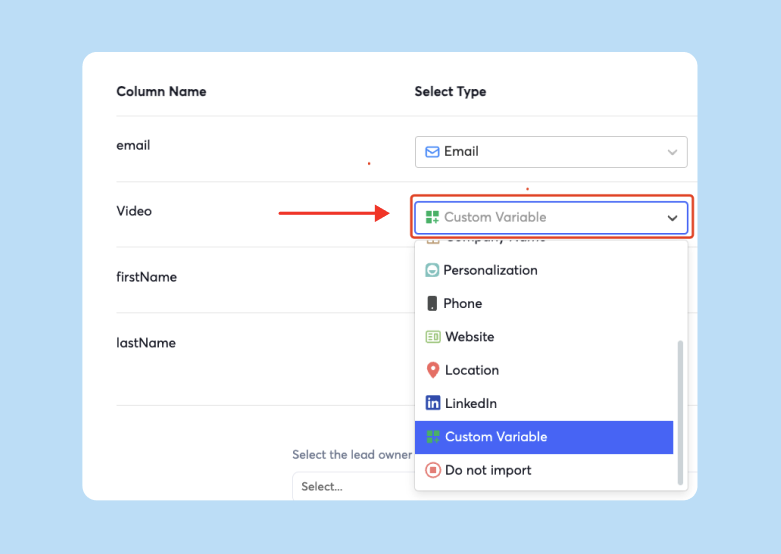

Method 2: Compression and direct attachment
Compression tools reduce file size by lowering resolution, frame rate, or bitrate. A 100MB screen recording can often be compressed to 15MB using software like HandBrake. The downside is quality loss. Blurry or poorly lit content appears untrustworthy, and a 15MB attachment still flags spam filters on new domains.
Method 3: Thumbnail + link to hosted video (the winner)
Host the video on a dedicated platform like YouTube, Vimeo, Loom, or Vidyard and send a static thumbnail image that links to the hosted URL. The thumbnail includes a play button overlay to signal that it is a video. This approach ensures consistent rendering across all email clients because it uses a standard image file with a hyperlink, which every client supports.
The email remains lightweight, typically under 100KB, which protects deliverability. You can track clicks to measure engagement and retarget prospects who watched but did not reply. Hosting platforms provide detailed analytics, including watch time, drop-off points, and replay counts.
The same A/B tests across 11,000 recipients found that emails with a video thumbnail and play button saw a 40.83% higher click-through rate than emails with static images alone. Across seven separate tests, the average CTR increase was 21.52%.
For sales leaders, this method offers standardization. You can create a template with a thumbnail image variable and scale it across your team.
Watch how to run A/Z tests at scale with Instantly below:
Comparison: deliverability, user experience, and scale
| Method | Deliverability Risk | User Experience | Scalability |
|---|---|---|---|
| Cloud Storage (Drive, WeTransfer) | Low (small email size) | High friction (extra steps, login required) | Medium (manual links per prospect) |
| Compression + Attachment | Medium (still large, quality loss) | Poor (pixelated on larger screens) | Low (manual per email, no tracking) |
| Thumbnail + Hosted Link | Very Low (tiny email, <100KB) | Smooth (one click to hosted player) | High (template-ready, full analytics) |
How to execute the thumbnail strategy
The thumbnail method relies on three components: a high-quality video file, a compelling static image with a play button overlay, and a hosting platform that provides an embeddable link.
Step 1: Record and host your video
Use a screen recording tool like Loom, Vidyard, or Sendspark to capture your demo. Keep the video under three minutes. Shorter videos have higher completion rates because prospects can watch during a break.
Upload the video to your chosen platform. These tools generate a unique URL for each video and provide thumbnail customization options. Set the video to public or unlisted depending on your privacy requirements.
If you are sending personalized videos at scale, use a tool that integrates with your CRM. Loom and Vidyard both offer API access and native integrations with HubSpot, Salesforce, and platforms like Instantly.
For a complete visual walkthrough of going from domain setup to live campaigns, watch our campaign setup tutorial covering warmup, variables, and thumbnail insertion.
Step 2: Create a high-quality thumbnail with a play button
Your prospect sees the thumbnail first. It must grab attention and clearly signal that it leads to video content. Thumbnails with expressive human faces increase engagement by up to 35% because faces convey emotion and build relatability.
Add a play button overlay to the center of the image. Thumbnails with play buttons see significantly higher click-through rates because they set clear expectations. You can add a play button using free tools like Canva, Photoshop, or built-in editors in Loom and Vidyard.
Follow these design principles:
- Use high contrast and bright colors. Vibrant colors like red, yellow, and blue increase visibility in crowded inboxes. High contrast between the background and play button ensures the image pops even on small mobile screens.
- Keep text minimal. If you include text, limit it to three to five words that tease the video's value. Thumbnails with fewer words perform better because they reduce cognitive load. Use bold, sans-serif fonts like Arial or Roboto.
- Optimize for mobile. A significant portion of emails are opened on mobile devices, so ensure your thumbnail is clear at smaller sizes. Test how it renders on both desktop and smartphone screens.
- Avoid clutter. A cluttered thumbnail confuses viewers and reduces clicks. Stick to a single focal point, whether that is your face, a product screenshot, or a key data visualization.
Export your thumbnail as a JPG or PNG file at a resolution of at least 1280x720 pixels. Keep the file size under 200KB to ensure fast loading.
Step 3: Link the thumbnail and embed it in your email
Insert the thumbnail image into your email template. In most email editors, you upload the image, then add a hyperlink that points to your hosted video URL. The recipient clicks the image and is taken directly to the video landing page.
Some platforms like Loom and Vidyard offer animated GIF previews as an alternative to static thumbnails. A short, looping GIF can be more eye-catching because it provides a teaser. However, GIFs increase email size, so test deliverability impact before rolling them out. If you choose a GIF, keep it under 1MB and limit the loop to three to five seconds.
Write a short sentence of context above or below the thumbnail. Frame the video as a benefit to the recipient. For example: "I recorded a two-minute walkthrough showing how we helped [similar company] cut follow-up time by 40%. Watch it here."
Step 4: Test deliverability before scaling
Before sending your video email to your full list, run a deliverability test. Use a tool like Instantly's Inbox Placement test to check where your email lands across major providers.
If your email lands in spam, review link reputation, image-to-text ratio, and warmup status. Fix any flagged issues, then re-test until you achieve at least 90% primary inbox placement. Only after you hit this threshold should you launch your campaign to live prospects.
Step 5: Track engagement and iterate
Monitor both email-level metrics (open rate, click-through rate) and video-level metrics (watch time, completion rate). If your click-through rate is below 3%, test a different thumbnail image or adjust your framing copy. If your video completion rate is low, trim your script and personalize the first 10 seconds to the recipient's company or role.
Aim for 60% or higher completion rate. Use engagement data to prioritize follow-ups. Prospects who watched 80% or more of your video are high-intent leads. Route them to your AE queue or schedule a meeting immediately.
How to scale video outreach with Instantly
Scaling video outreach across a team of SDRs while maintaining deliverability requires a centralized platform with built-in safeguards. Instantly provides the infrastructure to run high-volume video campaigns without risking sender reputation.
Feature 1: Unlimited email accounts for safe throughput
Sales teams often hit spam filters because they send too much volume from a single inbox. Best practice is to cap each inbox at 30 sends per day to mimic human sending patterns.
Instantly includes unlimited email accounts on all outreach plans starting at $37 per month. We cover this in detail in our cold email vs email marketing guide. This lets you distribute your video campaigns across multiple inboxes, keeping volume per account low and sender reputation high.
Feature 2: Campaign variables for dynamic video links
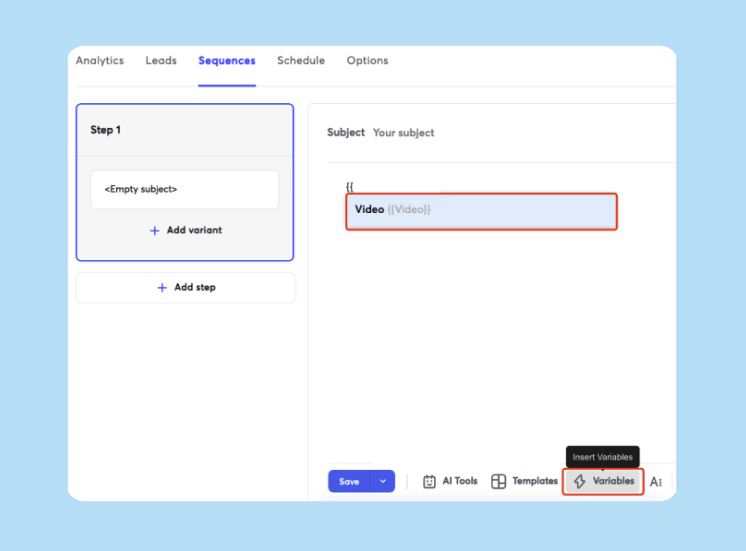
Personalization increases reply rates, but manually inserting unique video links for each prospect does not scale. Instantly's campaign editor supports custom variables like {{video_link}} or {{first_name}} that dynamically populate based on lead data.
You upload a CSV with one column for the recipient's email and another for their personalized video URL, and Instantly merges them at send time. Learn more in our cold email prospecting guide. This is powerful for teams using tools like Sendspark or Bonjoro, which generate unique video URLs for each lead.
Feature 3: Inbox placement monitoring to catch spam traps
Instantly's automated Inbox Placement tests send your email to seed addresses across Gmail, Outlook, Yahoo, and other providers, then report where it landed. You can run these tests before launching a campaign and schedule recurring checks during the campaign to catch deliverability drift.
If your video link is flagged, Instantly's health dashboard will alert you. You can pause the campaign, switch to a different video host, and retest before resuming.
"The built-in chat system makes getting support incredibly easy, and every time I've reached out, I've received fast, thoughtful answers." – TrustPilot review
Feature 4: Unibox for centralized reply handling
Video emails often get more replies because they feel more personal. Instantly's Unibox aggregates all replies into a single interface so your SDRs can triage and respond without switching between tabs or logging into multiple Gmail accounts.
Feature 5: Built-in warmup to protect new domains
If you are launching a new video outreach campaign on a fresh domain, you cannot send at full volume immediately. ISPs flag new domains as suspicious. Instantly's warmup feature gradually ramps your send volume from 5 emails per day to 30 over a 30-day period. During warmup, your inboxes exchange emails with other accounts in Instantly's deliverability network, generating positive engagement signals.
"Everything about Instantly makes it better than competitors, the UI, the analytics, the data, deliverability, warmup pool." – G2 review
Setting up a video campaign in Instantly
- Connect your email accounts. Add your sending inboxes to Instantly and enable warmup for any new domains. Wait 30 days before launching.
- Upload your lead list. Import a CSV with columns for email, first name, company, and video URL if you are using personalized links.
- Build your sequence. Create a three-step sequence: initial email with video thumbnail, follow-up if no reply, and final touchpoint. Use the campaign editor to insert your thumbnail image and link it to your hosted video URL.
- Run an inbox placement test. Send your email to Instantly's seed list and confirm it reaches the primary inbox on at least 90% of providers.
- Launch and monitor. Start your campaign at 30 sends per day per inbox. Track open rates, CTR, and video watch time. Adjust your messaging or thumbnail based on performance.
Video gets replies when it reaches the inbox and plays smoothly. Direct embedding and large attachments fail both tests. The thumbnail method protects your deliverability, standardizes your team's approach, and gives you the tracking data you need to optimize.
Ready to scale your video outreach without risking sender reputation? Start a free trial with Instantly and launch your first campaign in under an hour.
FAQs
Can I embed a YouTube video directly in an email so it plays inline?
No. Gmail, Outlook, and most corporate email clients block HTML5 video tags for security reasons. Send a thumbnail image that links to the YouTube URL instead.
What is the file size limit for iCloud Mail Drop?
Mail Drop allows files up to 5GB. The service uploads your file to iCloud and sends the recipient a download link that expires after 30 days.
Does adding a video link hurt deliverability?
It can, but only if your sending domain lacks warmup or if the video hosting domain has a poor reputation. Use Instantly's warmup feature for at least 30 days and run an inbox placement test before launching.
How long should my video be for cold outreach?
Keep it under two minutes. Focus the first 10 seconds on the recipient's specific pain point or company to hook their attention immediately.
Should I use an animated GIF or a static thumbnail?
Start with a static thumbnail. GIFs can be more eye-catching, but they increase email size and may trigger spam filters if they exceed 1MB.
Key terminology
Mail Drop: An Apple feature that uploads files up to 5GB to iCloud and sends recipients a download link instead of attaching the file directly to the email. The link expires after 30 days.
WeTransfer: A cloud-based file transfer service that allows users to send large files up to 2GB on free accounts and 200GB on paid plans without requiring recipient accounts.
Email attachment size limit: The maximum file size an email provider allows for incoming and outgoing attachments. Gmail and Yahoo cap this at 25MB, while Outlook enforces a 20MB limit for internet email accounts.
Cloud storage: Services like Google Drive, Dropbox, or OneDrive where files are hosted remotely and shared via link rather than direct attachment, bypassing email size restrictions.
Video compression: The process of reducing a video file's size by lowering resolution, frame rate, or bitrate to fit within email attachment limits, often at the cost of visual quality.
Sender reputation: A score assigned by ISPs based on your sending behavior (bounce rates, spam complaints, engagement signals) that determines whether your emails land in the inbox or spam folder.
Deliverability: The ability of an email to successfully reach the recipient's inbox without being blocked, bounced, or filtered into spam or promotions folders.
Inbox placement: The specific folder where an email lands, such as primary inbox, promotions, social, or spam, which directly impacts whether the recipient sees and engages with the message.
Thumbnail: A static image or animated GIF that represents video content in an email, typically featuring a play button overlay to signal that clicking will lead to video playback.
Hard bounce: An email that is permanently rejected by the recipient's mail server due to an invalid address, size limit violation, or policy restriction, which negatively impacts sender reputation.
Warmup: The process of gradually increasing send volume from a new email account or domain over 30 days to build positive sender reputation with ISPs before launching full-scale campaigns.
CTR (Click-Through Rate): The percentage of email recipients who click a link or image in the email, used to measure engagement and the effectiveness of calls to action like video thumbnails.


